Prompt Dock tells you when something happens to your work: a prompt approved, a solution submitted to your challenge, a payout settled, a plan change.
The bell
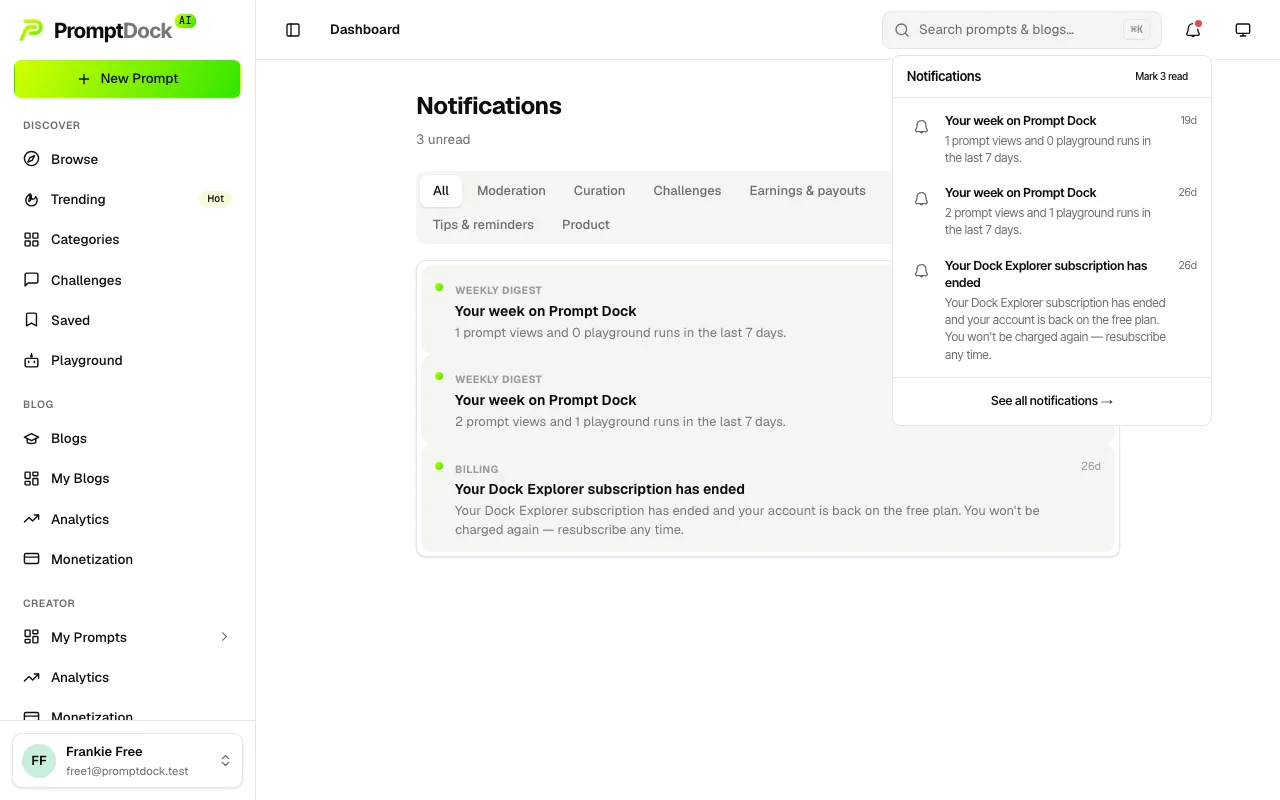
The bell in the top bar shows your latest notifications with an unread dot. Each one deep-links to the right page (your prompt, the challenge, your billing tab), and Mark read clears the dot without opening anything.
The notification center
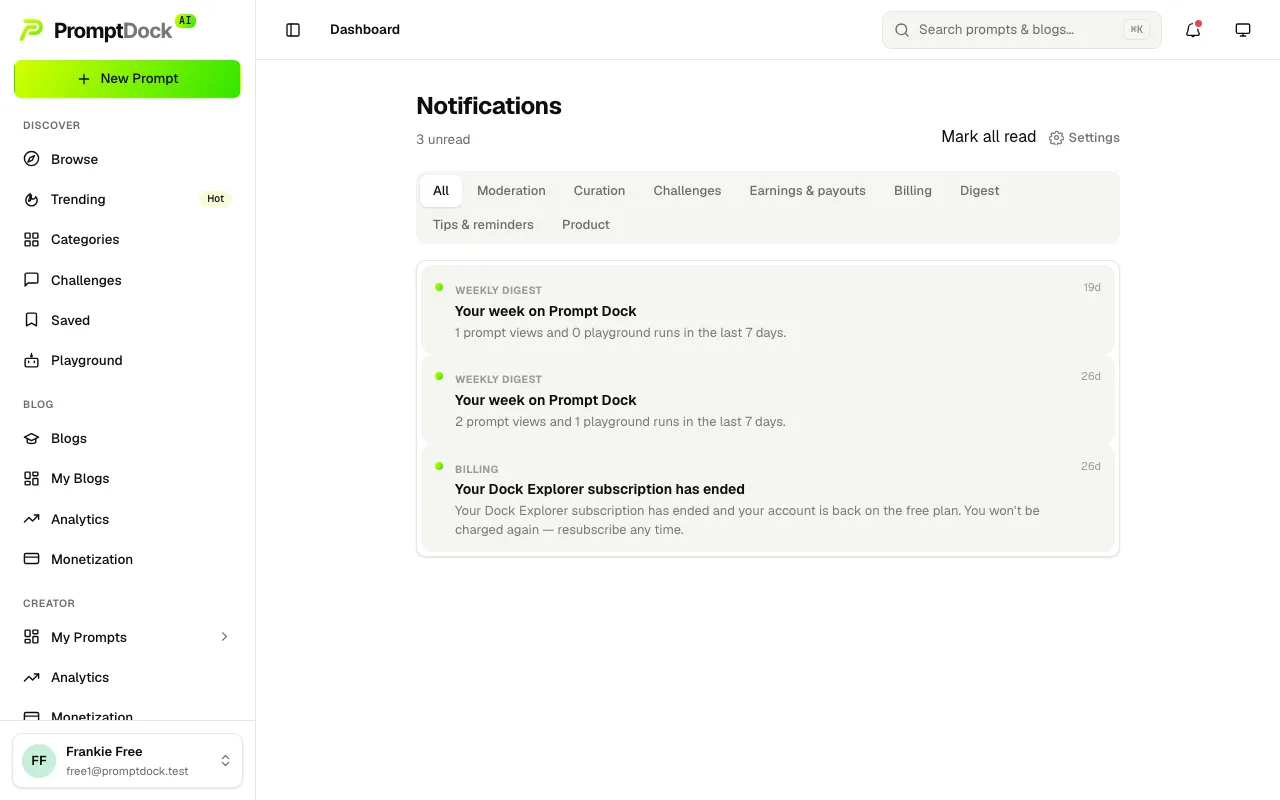
See all notifications at the foot of the bell opens the full history. That link is the way in: the notification center has no sidebar entry of its own. Filter chips narrow it by category: Moderation, Curation, Challenges, Earnings & payouts, Billing, Achievements, Digest, Tips & reminders and Product.
Opening a notification marks it read and takes you where it points. Mark all read clears the rest in one go.
Email, and how to turn it off
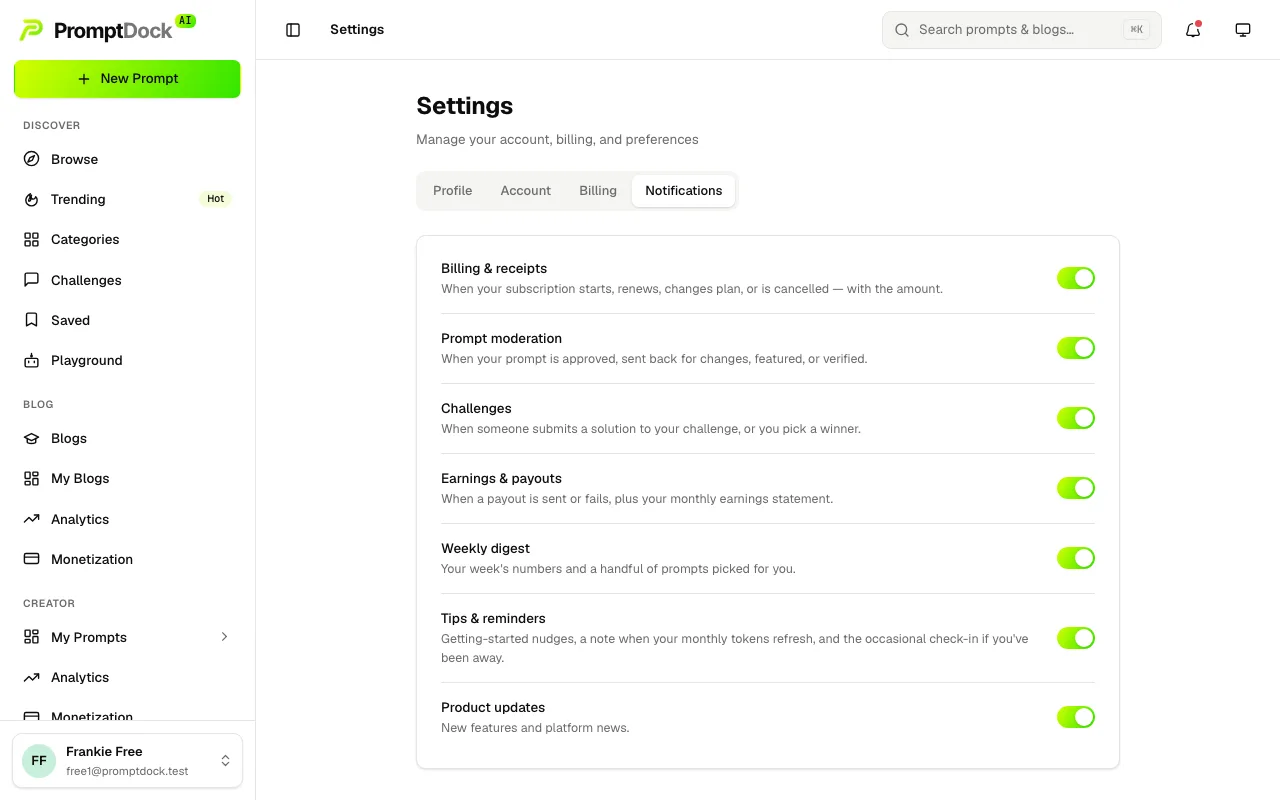
Most notifications can also reach your inbox. Settings → Notifications carries a switch per category: billing & receipts, content moderation, challenges, earnings & payouts, the weekly digest, achievements, tips & reminders, and product updates.
Each switch gates the email only. Turn one off and those messages stop landing in your inbox, while the notification itself still appears in the bell and the center.